Installation
Linux Distributions
KiwiPanel supports non-EOL Linux distributions officially supported by OpenLiteSpeed.
- Debian 11, 12, 13
- Ubuntu LTS 22.04, 24.04
- Rocky Linux 8, 9, 10
- AlmaLinux 8, 9, 10
- RHEL 8, 9 and compatible derivatives
CentOS Stream and EOL distributions are not supported.
Windows and Mac Distributions: Not Supported
Prerequisites
- Fresh VPS with supported OSs.
- Minimum >=512MB RAM
- Minimum >=1GB disk space
- Root access
Install
If you are installing Kiwipanel on Debian or the distro that does not have curl by default, run this command first:
sudo apt update && sudo apt install curlQuick install (advanced users):
bash <(curl -fsSL https://raw.githubusercontent.com/kiwipanel/kiwipanel/main/install)Recommended (review before install):
curl -sLO https://raw.githubusercontent.com/kiwipanel/kiwipanel/main/install
chmod +x install
sudo bash install
Successul Installation
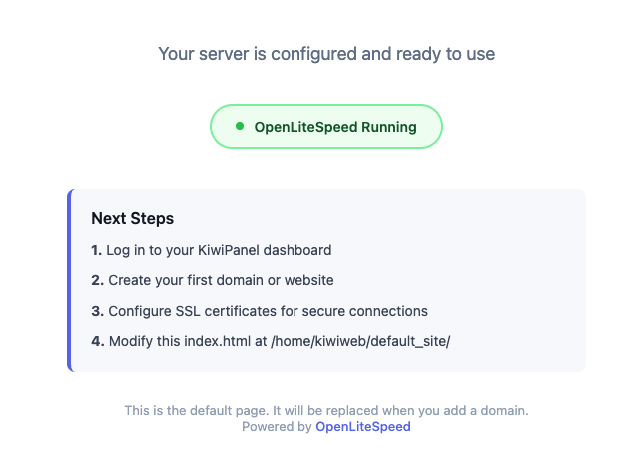
If the installation is successful, visit http://YOUR_SERVER_IP (NOT https ), you will see the following information:
🔐 Self-Signed SSL (Initial Access)
KiwiPanel automatically generates a self-signed SSL certificate after installation to secure the admin panel.
- Port:
8443 - SSL Path:
/etc/kiwipanel/ssl/ - Validity: 10 years
- Issued for: Server IP address
Access the Panel
https://YOUR_SERVER_IP:8443/PASSCODE
⚠️ Browser warnings are expected because the certificate is self-signed.
Click Advanced → Continue to proceed.
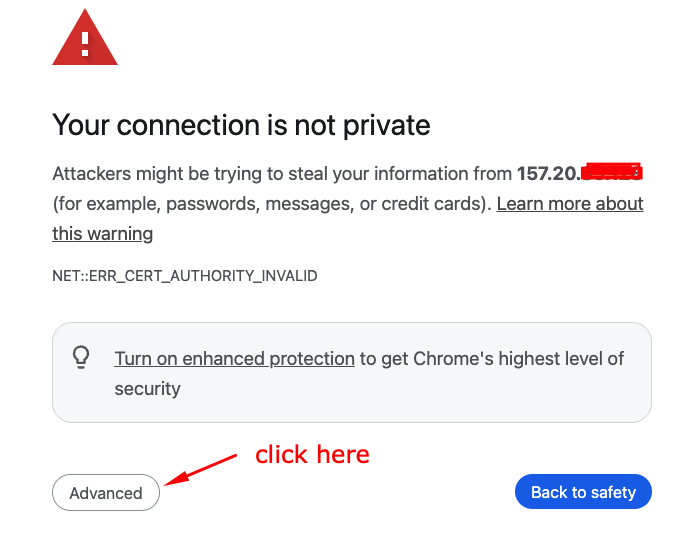
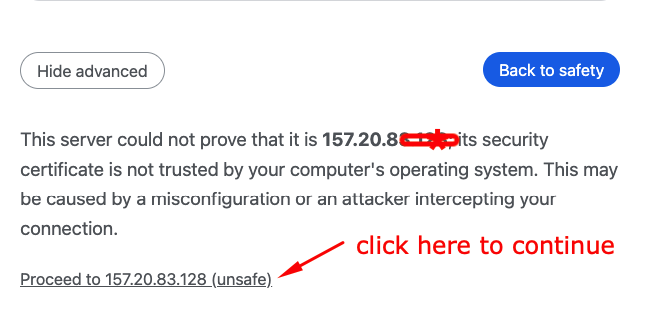
Then you will see a "warning" from the browser. That is expected because we are using a self-sign certificate. Hit the "Proceed to YOUR_SERVER_IP (unsafe)" button.
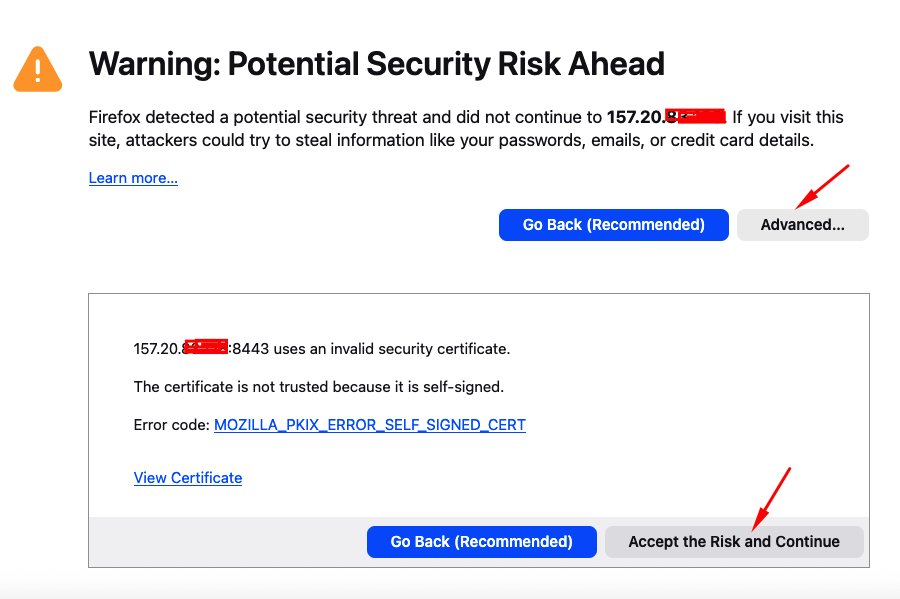
This is the warning on Firefox. You can ignore it and proceed to the panel by clicking on "Advanced..." button and then on "Accept the Risk and Continue".
Caveat:
-❌ Accessing to https://YOUR_SERVER_IP, you get refusal because there is not self-sign certificate for the IP.
-✅ You should use http://YOUR_SERVER_IP.
-❌ Accessing to http://YOUR_SERVER_IP:8443 is not recommended because it is not secure. You will see a "warning" from the browser or might be a blank depending on the browser.
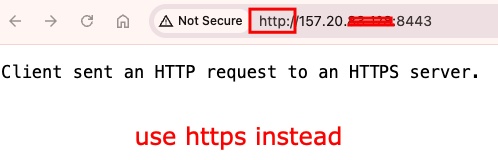
-❌ Accessing to https://YOUR_SERVER_IP:8443, you get 404 Not Found. It means the webpanel is properly configured. That is expected by design.
-✅ You should use https://YOUR_SERVER_IP:8443/PASSCODE instead.
Firewall
- Port
8443is used for the admin panel - Port
443is opened for future Let’s Encrypt SSL certificates
Log
Type the command cat /opt/kiwipanel/logs/install.log to see the installation log in case you encounter any issues.
Next Step
In the future, you might assign a domain and enable Let’s Encrypt SSL to replace the self-signed certificate. But for now, you can use the self-signed certificate for accessing to your admin panel, which is totally safe and normal given that we can assign a ssl certificate to a domain only, not IP.